Tutorial 3 of 12
Add a child account
Create a managed child account with a username and password, no email needed.
Child accounts are made by a parent and never need an email address.
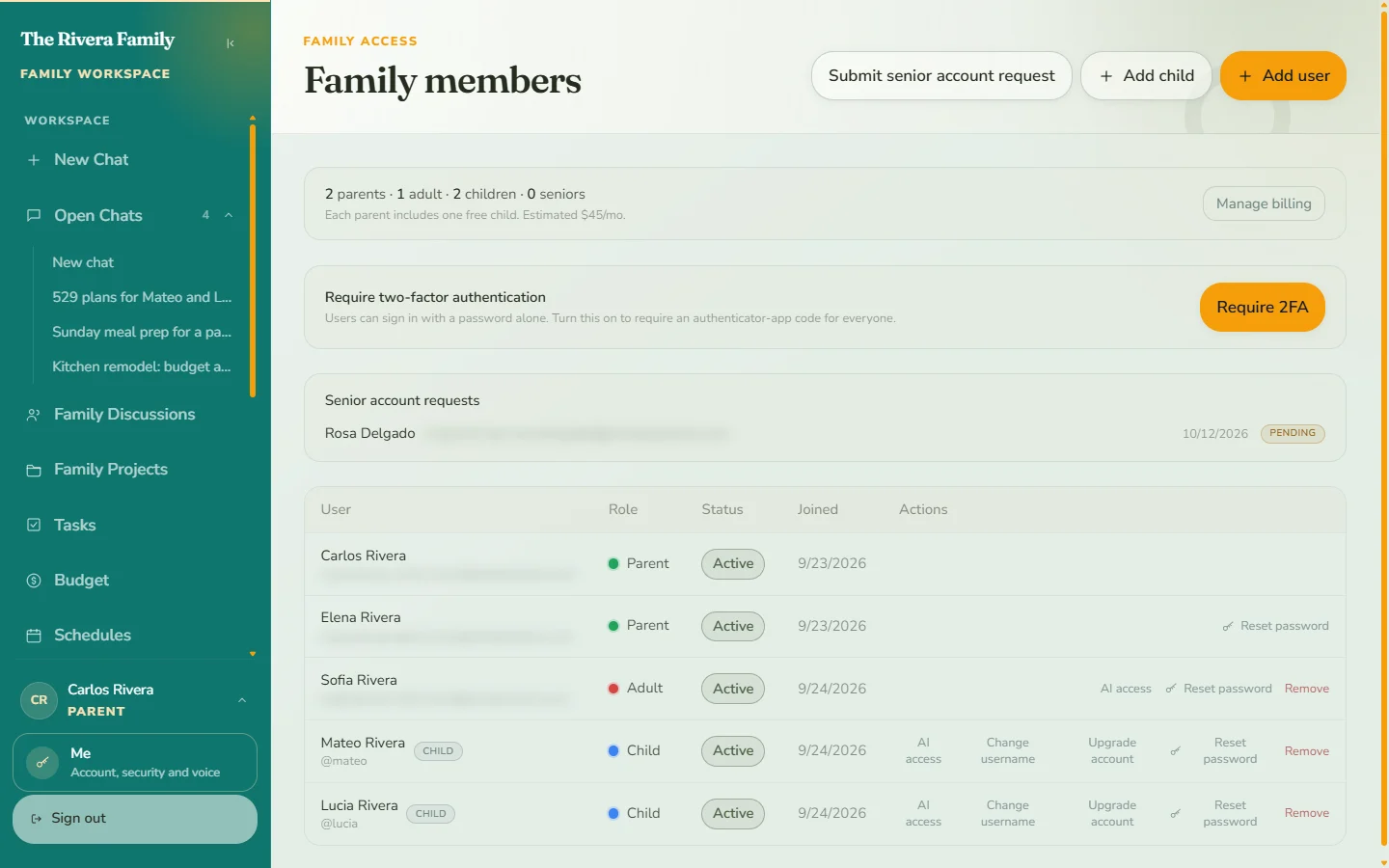
1. Open Family members
In the Parent tools section of the sidebar, choose Family members, then Add child.
2. Enter their details
- Child’s name
- Username. They will type this to sign in, so keep it easy to remember.
- Password, entered twice.
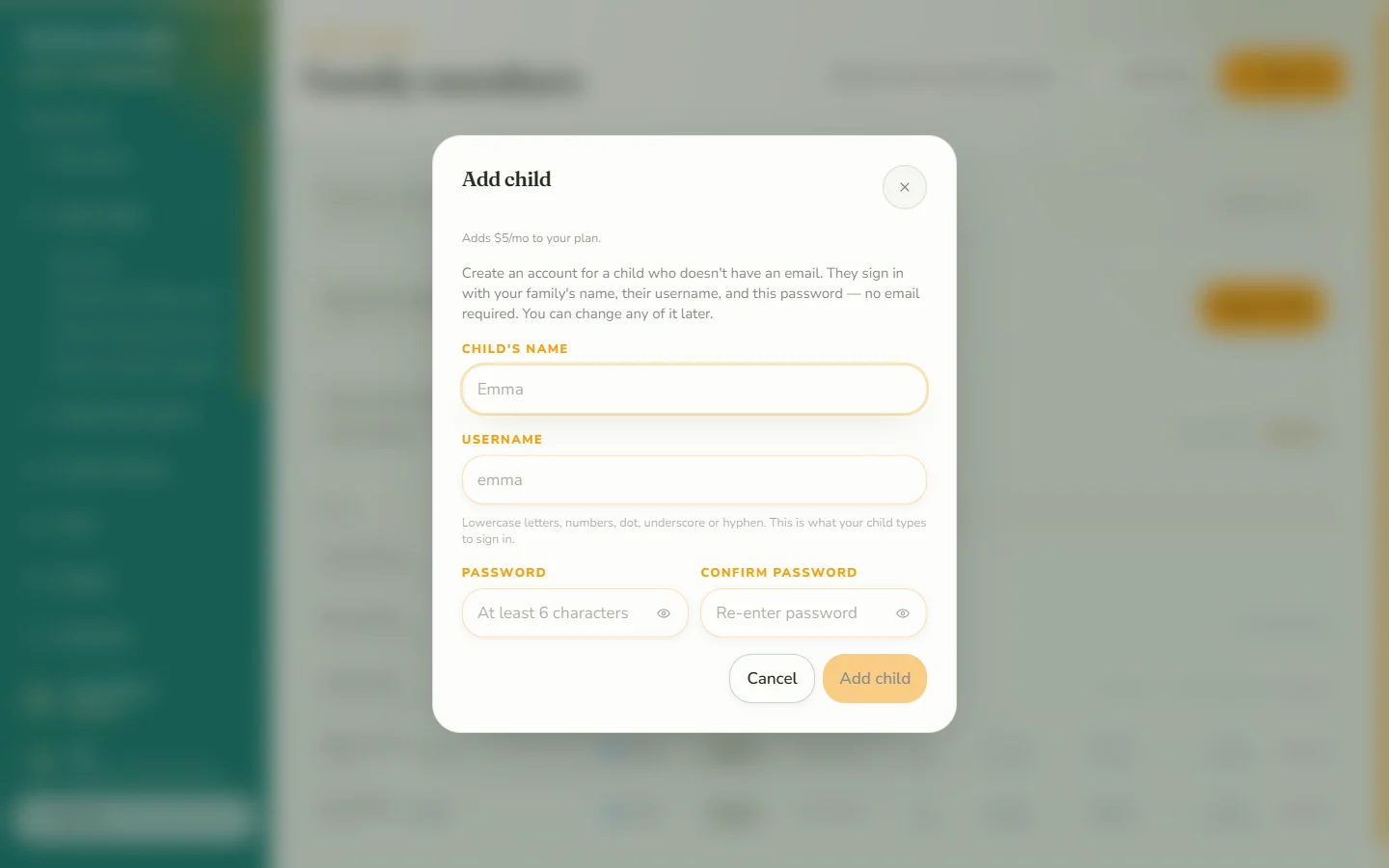
Select Add child, and the child’s account is ready immediately.
3. Help them sign in
On your family’s Grace address, children use the kids sign-in instead of the adult one. They enter the family, their username and their password. Children see six bottom tabs: Home, My chats, Quests, Family, Notes and Me. Help them choose a helper, save a chat answer to Notes, open a shared project, and submit completed work for adult approval. They pick an avatar and color in Me.
Walk through the child interface together. The family user guide explains parent controls, adult calendars and budgets, and the differences in child access.
What it costs
Each parent seat includes one free child account. With one parent, the first child is free and each additional child is $10 a month. With two parents, two children are free. A family can have up to two parent accounts, so two free children is the most a family can have.
Good to know
- You can change a child’s username, reset their password, or remove the account from the same page.
- If a child gets their own email address later, you can upgrade them to an email account. That moves them from the $10 child seat to the $15 adult seat.
- Next, set a daily limit and a curfew.