Skip to content
Grace

Product tour

One assistant, two ways to use it

Grown-ups get a full workspace for chats, projects, documents and family settings. Children get a calmer space with bigger type and the boundaries their parents set.

For parents and adults

A workspace the whole family can share

Chat with Grace, plan together, and keep documents where everyone can find them. Parents also get the tools to run the family.
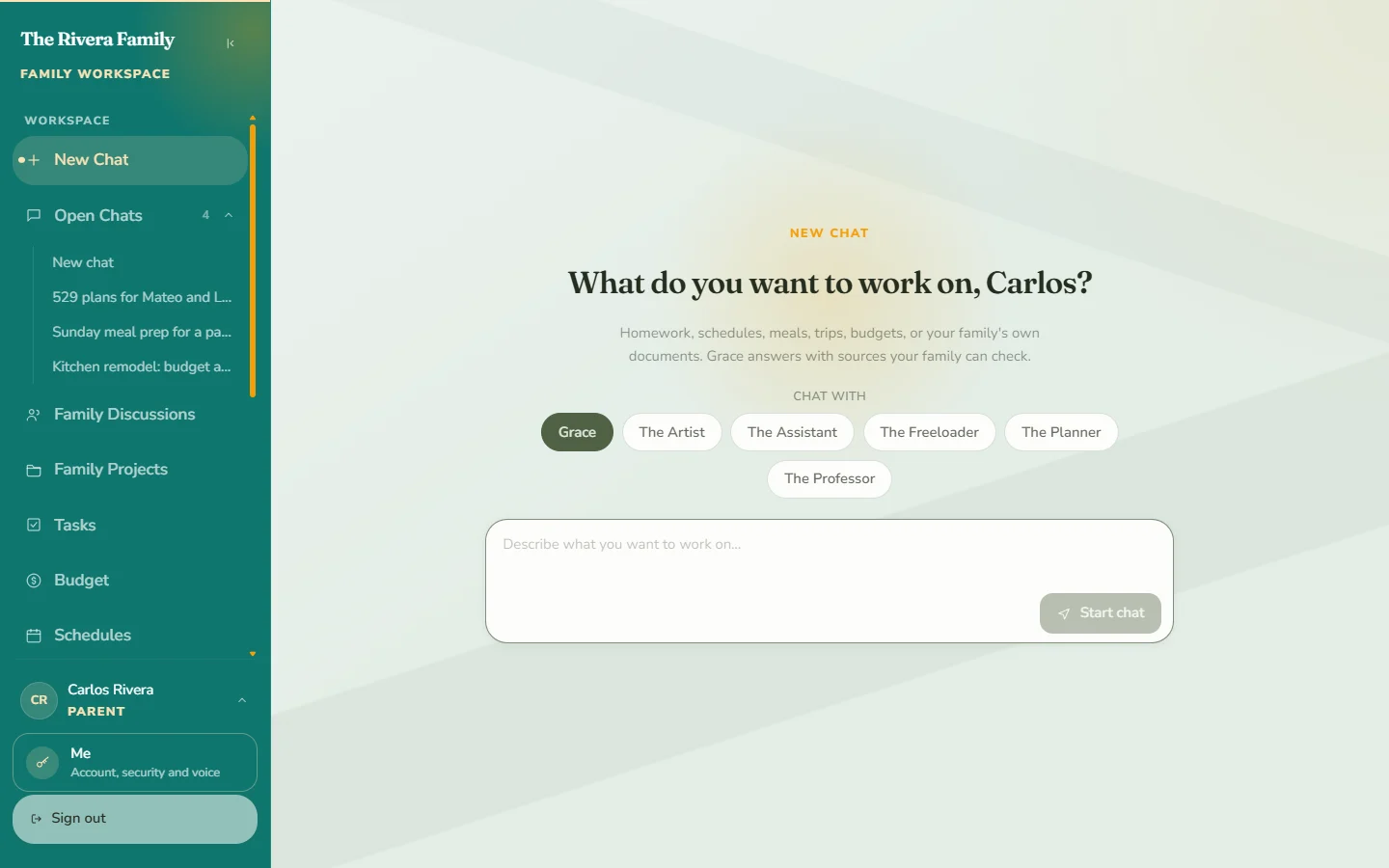
The Grace chat home screen for a parent, with a box that asks what you want to work on.
Ask Grace anything, or start a family note, from one calm home screen.
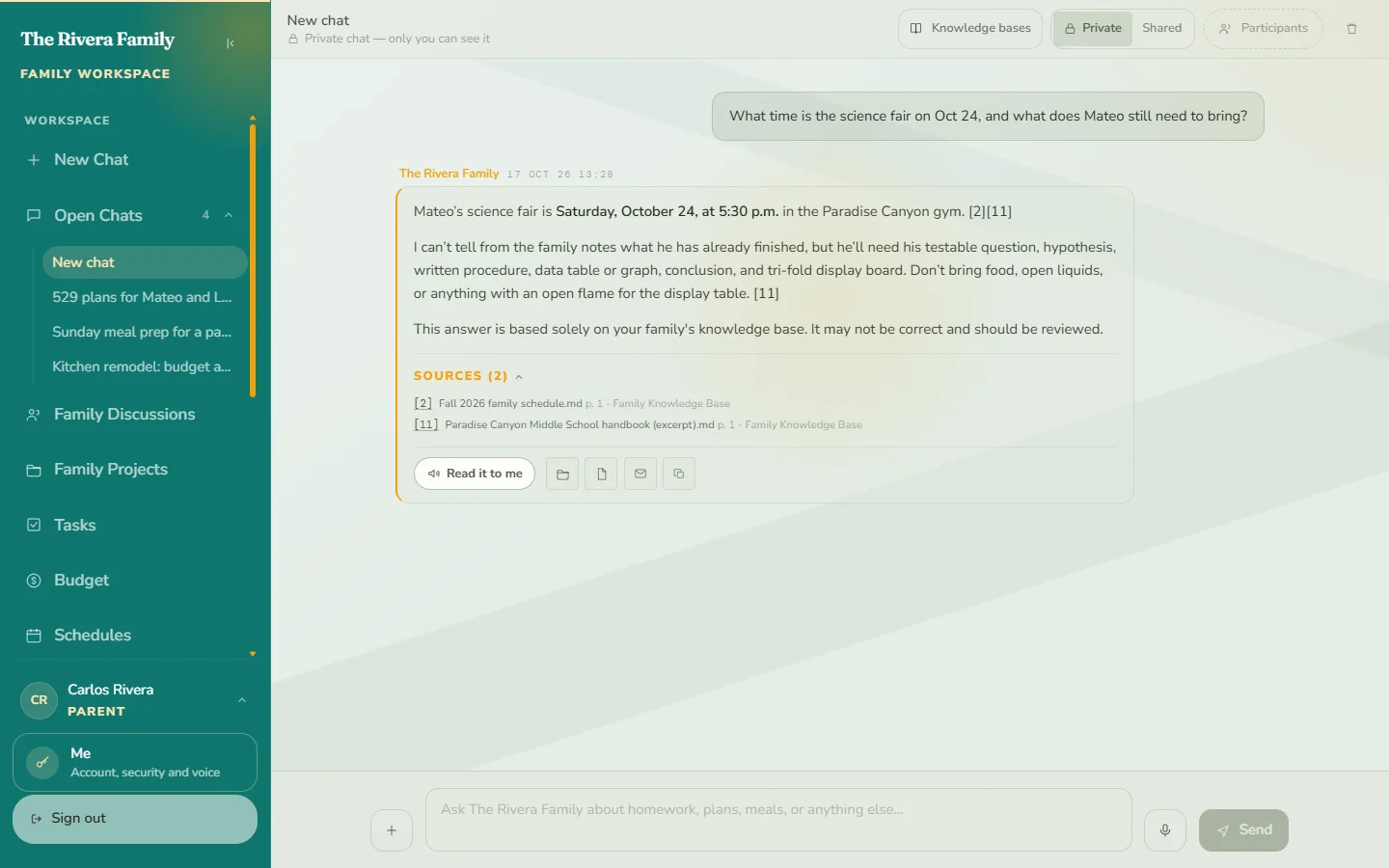
A Grace reply with numbered source references and a Read it to me button.
Answers cite the family documents they came from, and can be read aloud.
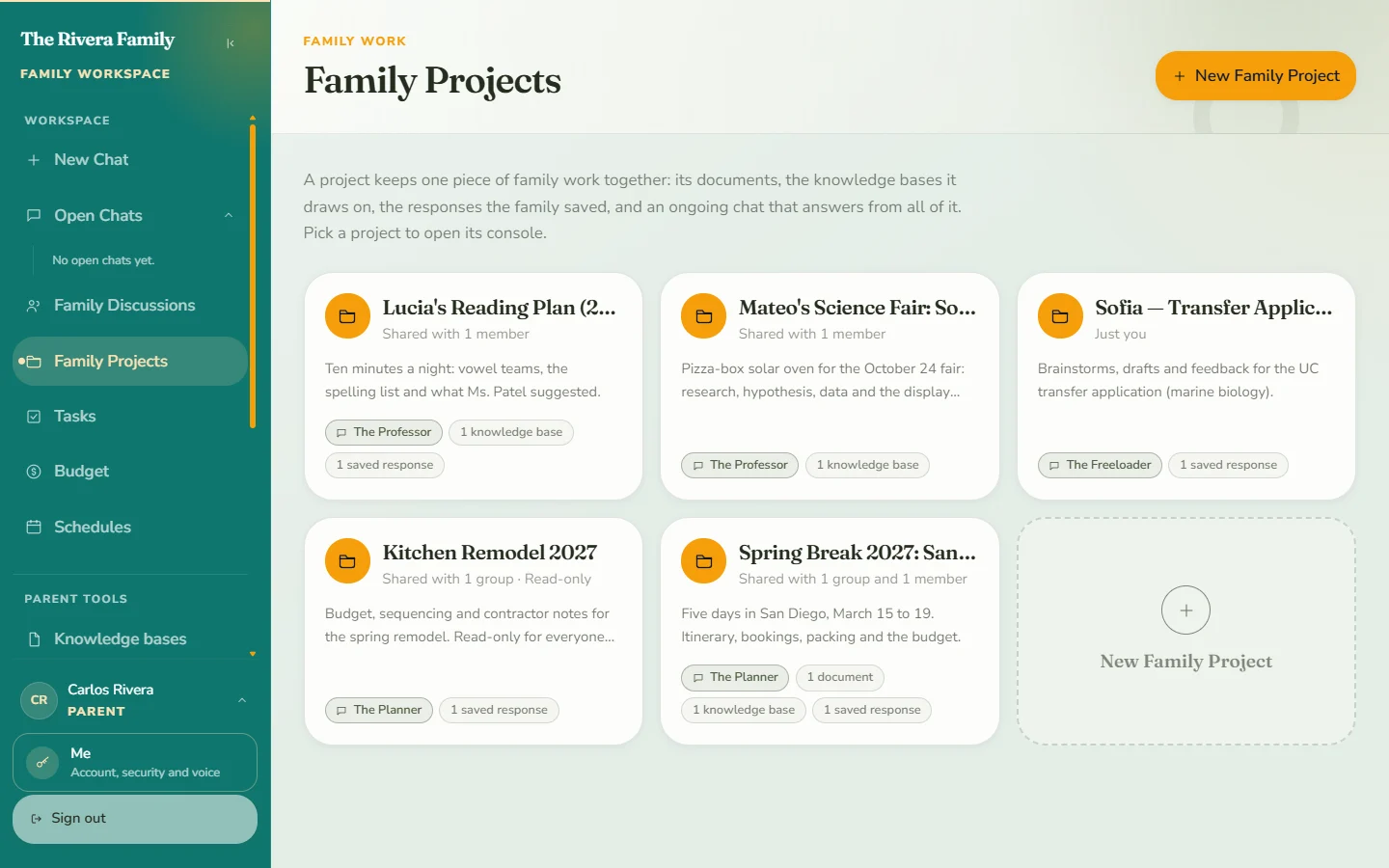
The Family Projects gallery showing several shared projects.
Family Projects keep a plan, its documents and its chat in one place.
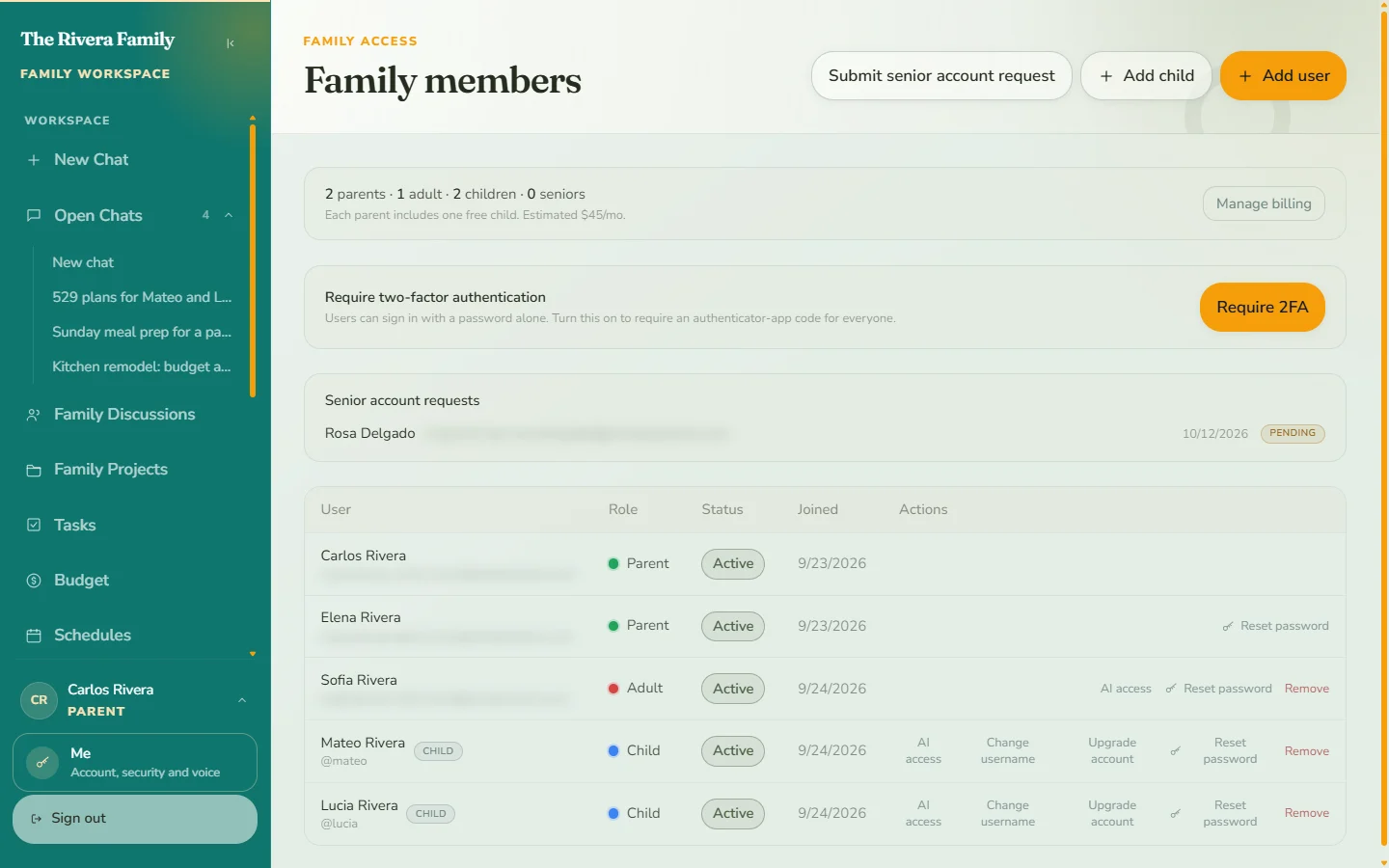
The Family members page listing parents, adults and child accounts.
Parents add members and create child accounts from the Family members page.
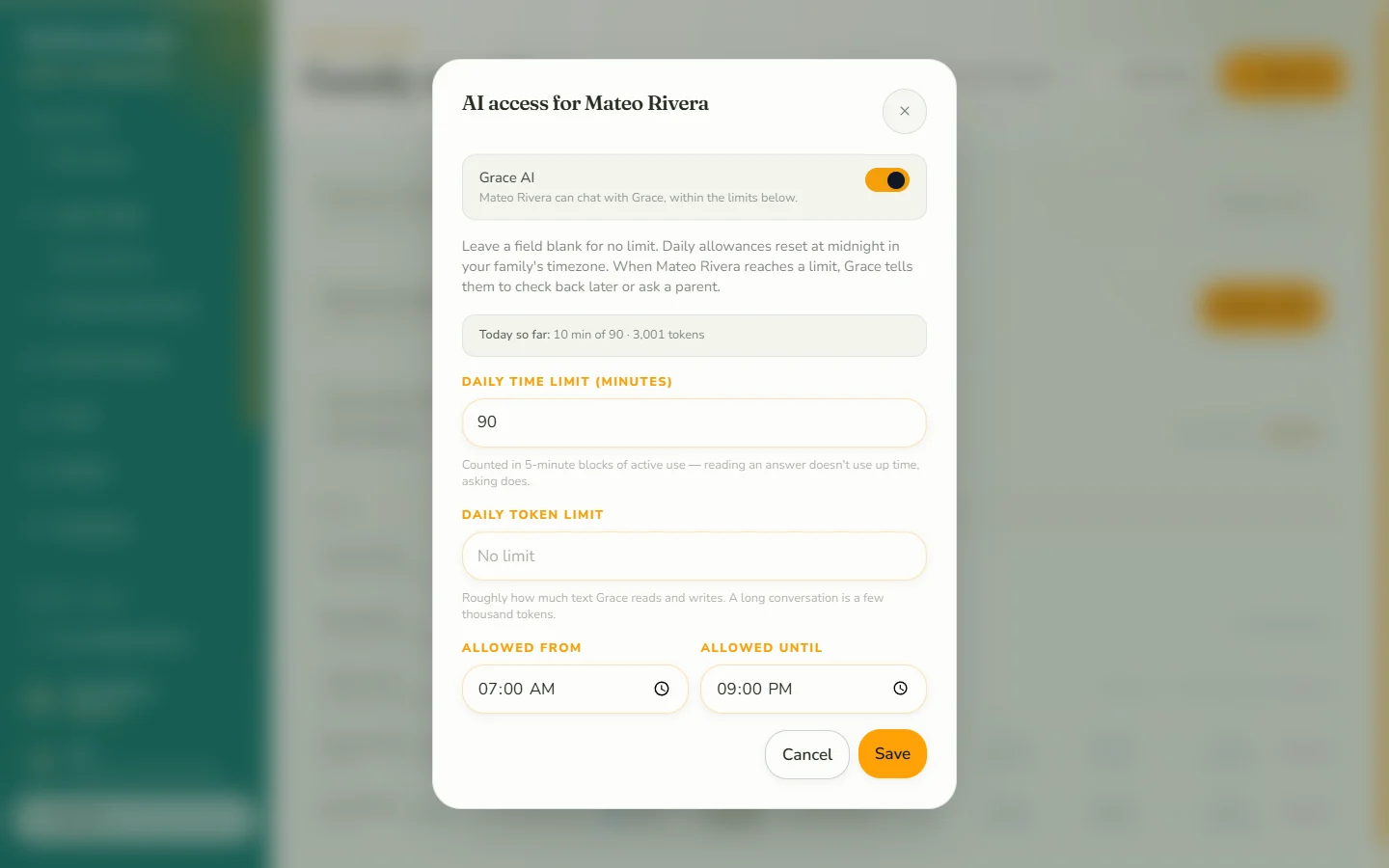
The limits dialog for a child with AI on or off, daily minutes, daily usage and a curfew.
Set daily limits and a curfew for each child.

For kids

Simple, friendly, and theirs

Children sign in with a username and see a home screen made for them. Parents decide how much time Grace is available.
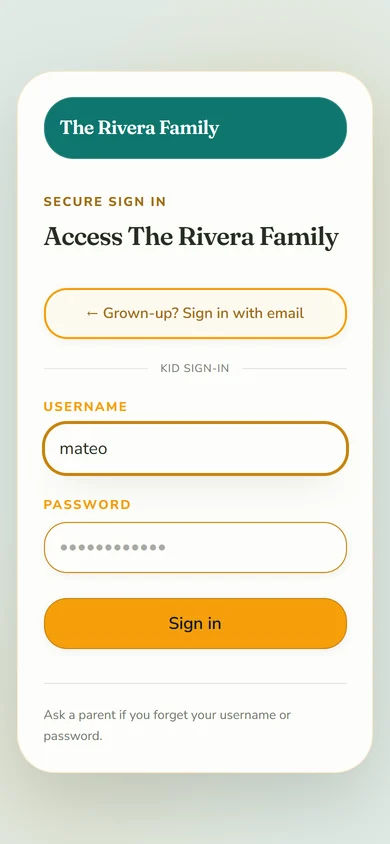
The kids sign-in form for the family, with a Username field, a Password field and a Sign in button.
Kids sign in with a username and a password from a parent. No email address needed.
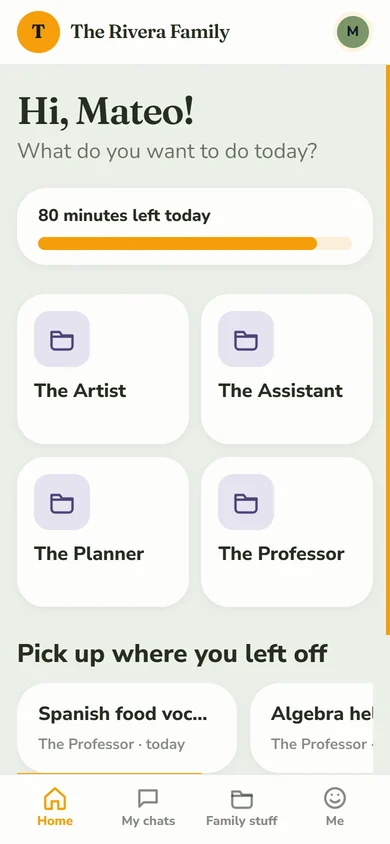
The child home screen with a greeting, minutes left today, a tile for each assistant, and recent chats to pick up.
A friendly home screen with time left today and a big tile for each assistant.
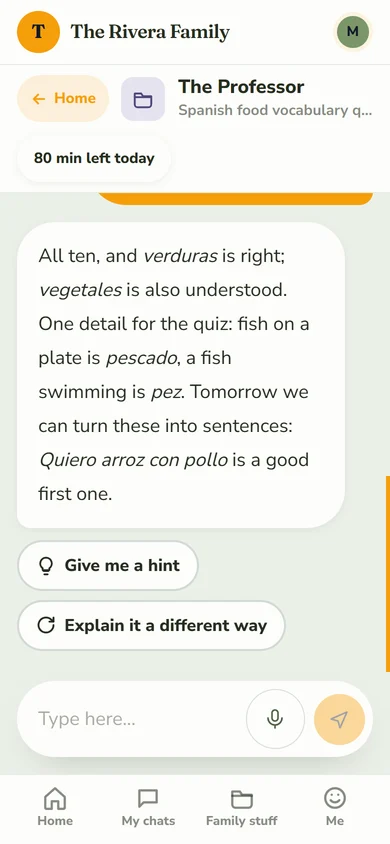
A child chat with large message bubbles and quick replies.
Big bubbles, quick replies, and type or talk to ask.
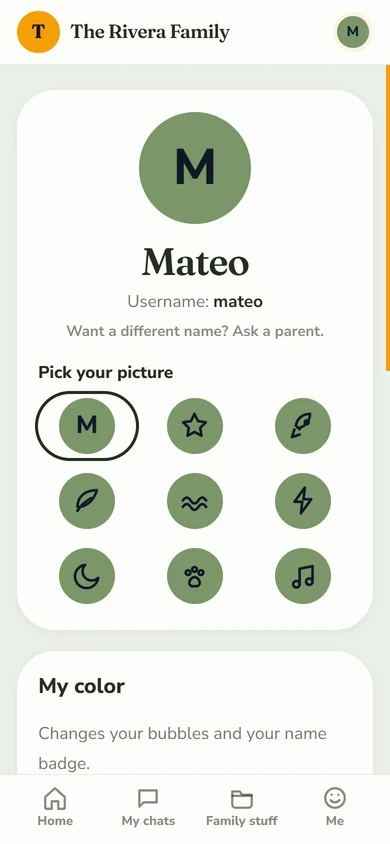
The Me page where a child picks an avatar and a color.
Kids make Grace theirs with an avatar, a color, and read-aloud.

See it with your own family.

Set up a private workspace in about five minutes.

Start your family