Tutorial 4 of 12
Set daily limits and a curfew
Control when and how much each child can use Grace.
Limits are set per person, so each child can have their own rules.
1. Open the limits for a child
Go to Parent tools, then Family members. Find the child and choose AI access.
2. Choose your rules
- Grace AI on or off. Switch Grace off entirely for a child, for example during exams.
- Daily time limit (minutes). How long they can use Grace each day. Time is counted in short blocks, so the number is an approximation.
- Daily token limit. A cap on how much they can ask and read each day. Tokens are the small pieces of text the AI processes; a typical homework question uses very few.
- Allowed from and allowed until. A curfew window, such as 3:30 pm to 7:30 pm. It follows your family’s time zone.
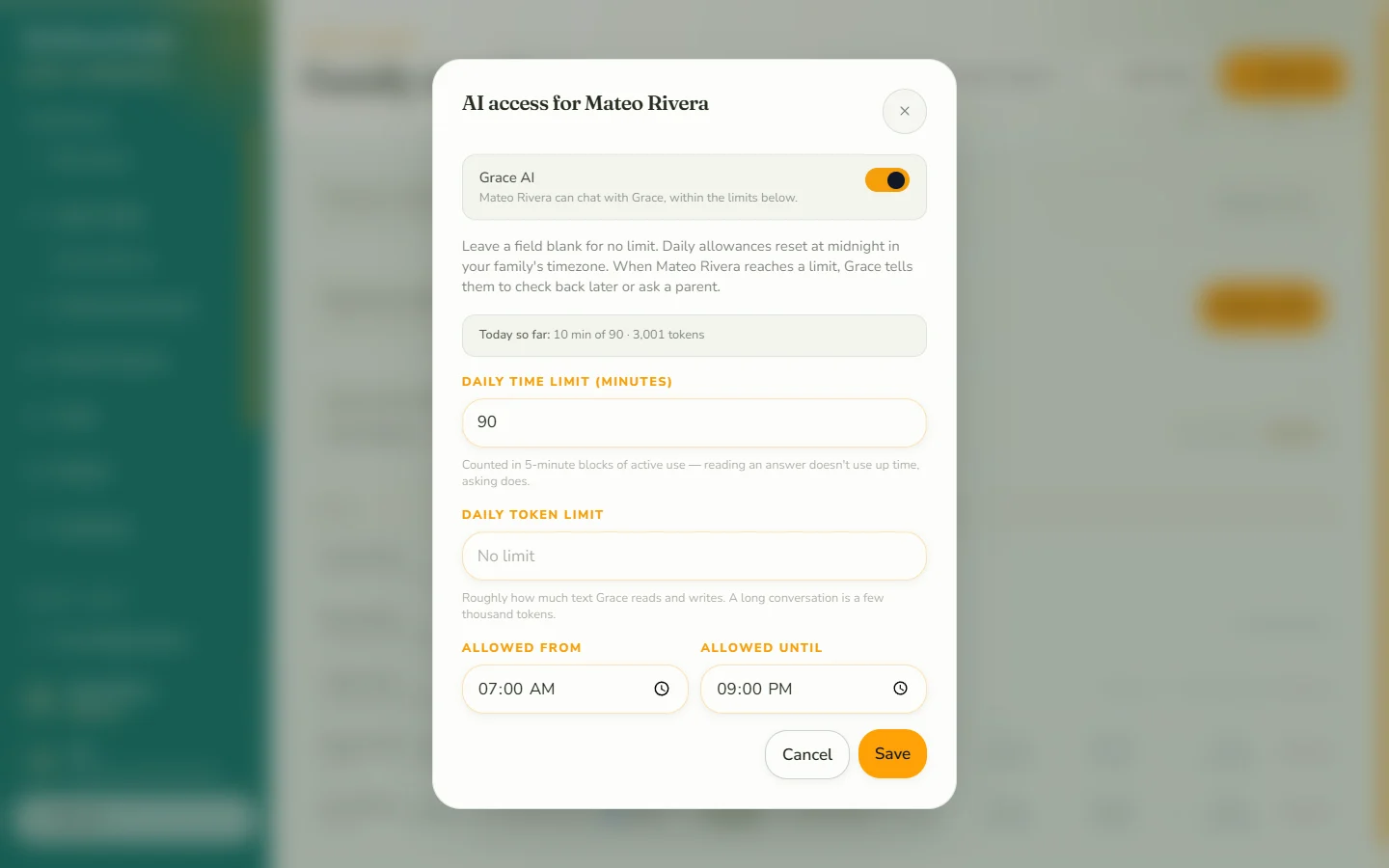
Save your changes and they apply right away.
What your child sees
Children see how many minutes they have left today on their home screen. When a limit or the curfew is reached, Grace shows a friendly message that explains why, instead of an error.
Tips
- Start strict and loosen later. It is easier to grant a new freedom than to take one away.
- Limits can also be applied to adult members, which is handy for a babysitter or au pair.
- Parents are not limited.