Tutorial 5 of 12
Build a family knowledge base
Upload the documents that run your household so Grace can answer from them and cite its sources.
A knowledge base is a collection of your family’s documents that Grace can search and quote.
1. Open Knowledge bases
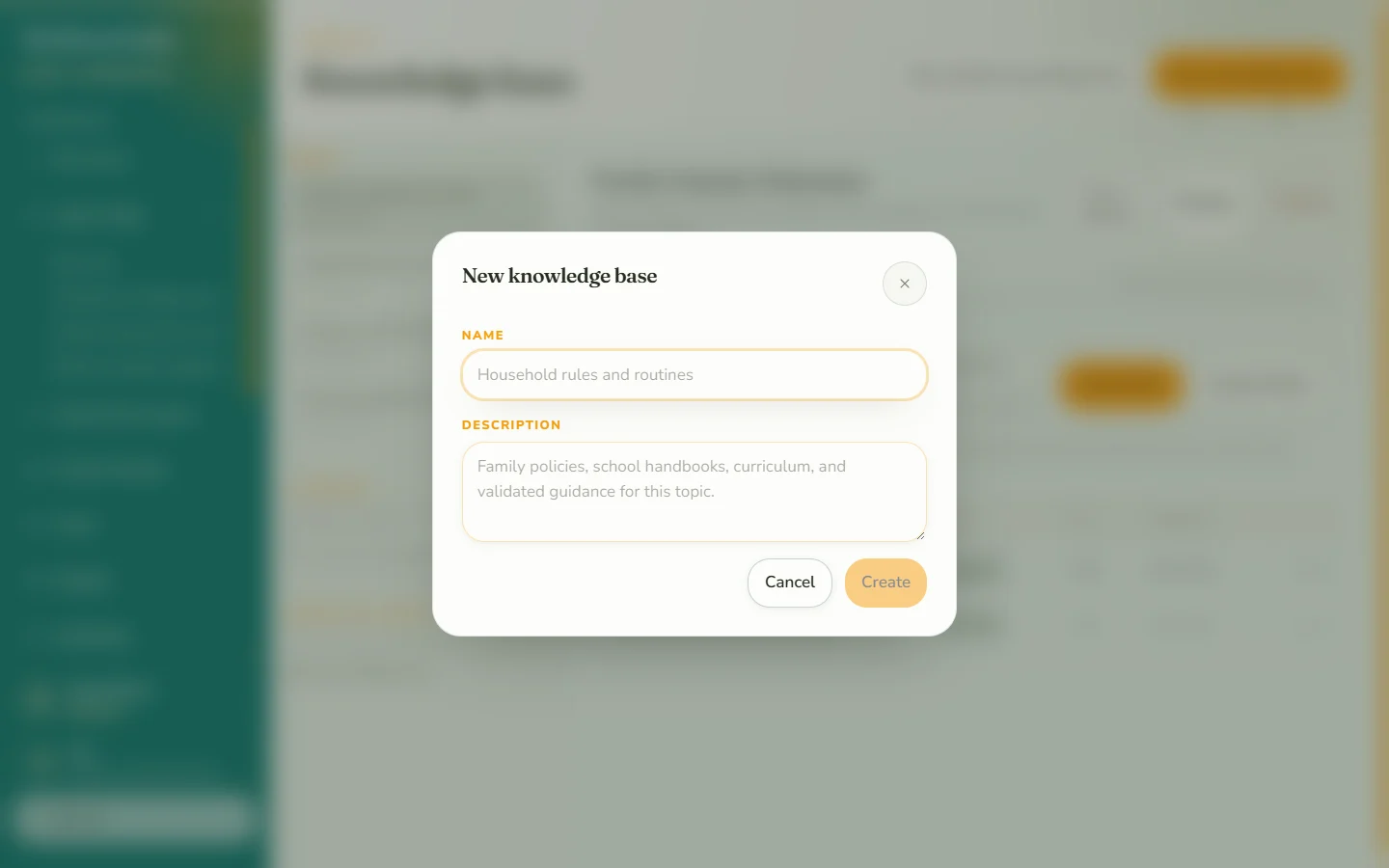
Under Knowledge controls, open Knowledge bases. Parents can create a shared family knowledge base; adults can also create a private one. Give it a clear name, such as School forms, Recipes, or House manuals.
2. Add your documents
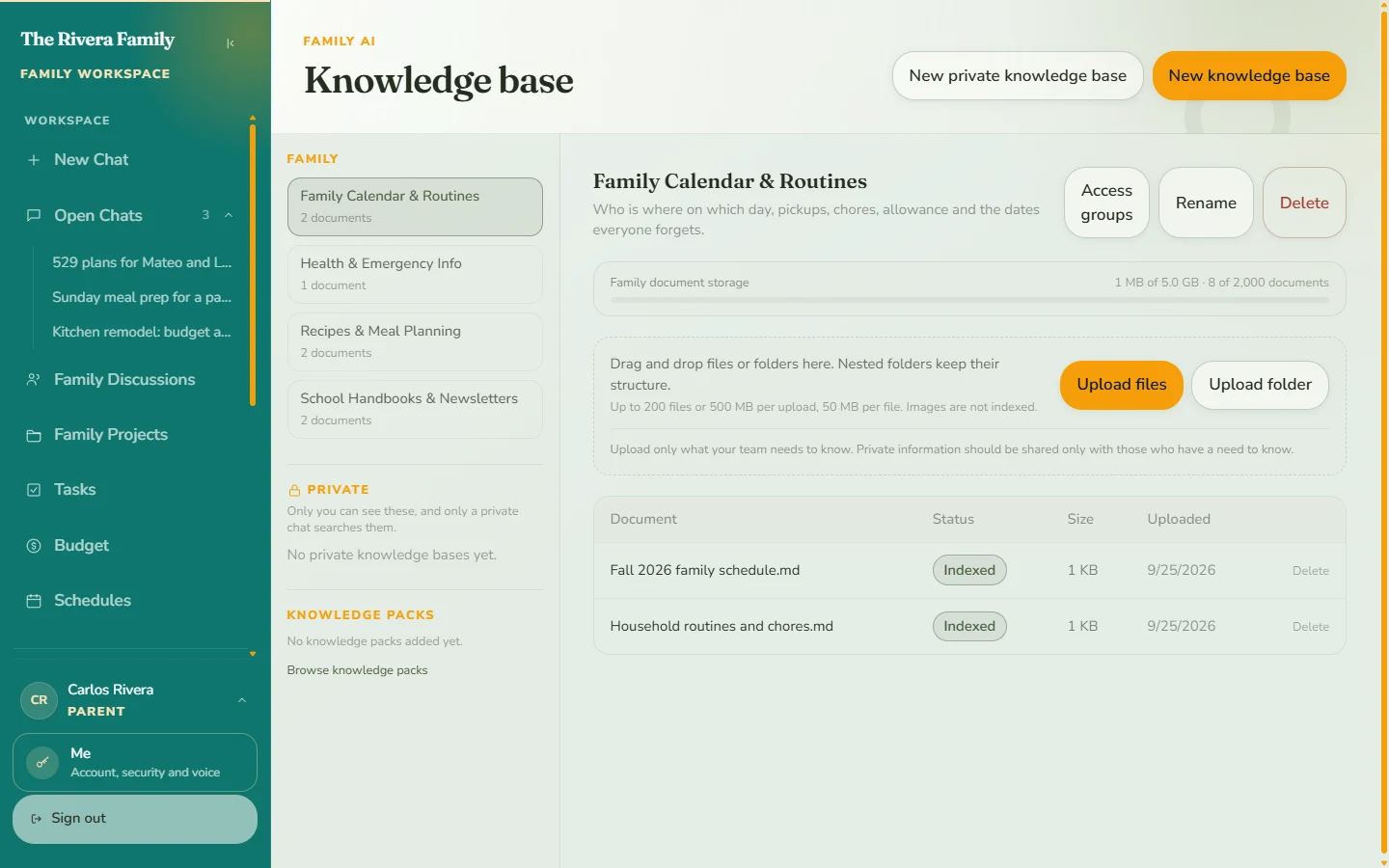
Upload the files that answer questions your family asks over and over: school handbooks and calendars, recipes, appliance manuals, vet records, trip bookings. Grace reads each file and gets it ready; larger files take a little longer.
By default a family can store up to 5 GB across 2,000 documents.
3. Add chat responses, notes or a notes section
Use Add to knowledge base on a chat response or one of your own notes. To copy a whole section, open its options menu in Notes and choose Add to knowledge base. Pick the destination and select Add. A section becomes one searchable document containing its nonempty notes; an empty section cannot be saved.
The picker shows only knowledge bases you can write to, including Project: [name] for editable projects. Every project has its own empty knowledge base from creation. Project knowledge follows project permissions, and private draft knowledge remains visible only to the draft creator.
Saved notes and sections are copies. Later note edits do not change the saved document; add a new copy when needed and remove outdated copies. Children can write personal notes but cannot add content to knowledge bases. See the project walkthrough.
4. Ask Grace
Start a chat and choose the knowledge base to ask from. Answers draw on your documents and show numbered sources. Select a source to open the exact document it came from.
5. Decide who sees what
Not every document is for every member. Use Access groups in Parent tools to control which members can use which knowledge bases.
Knowledge packs
Knowledge packs are ready-made collections curated by Grace that you can attach to your family without uploading anything. Browse them from Parent tools.
Organization knowledge and schedules
In Knowledge marketplace, a non-parent adult uses Request parent approval to request an organization's knowledge base and schedule. Parents approve or decline in Schedules → Organization requests to review. Paid access starts after checkout confirmation. Follow the approval steps.
Tips
- Name files clearly; Grace shows the file name in its sources.
- Keep sensitive documents in their own knowledge base so access is easy to control.