Tutorial 11 of 12
A first sign-in for kids
A parent walkthrough of child sign-in, all six tabs, chat helpers, notes, shared projects and quests.
Kids sign in with a username and a password, never an email address. Sit with your child the first time; it takes a couple of minutes.
1. Have their username and password ready
Kids use the username and password a parent set when the child account was made. If you need a reminder, you can change the username or reset the password from Family members in Parent tools.
2. Open your family’s Grace address
Use your family’s own workspace address, the one you bookmarked when you set up Grace. On the sign-in page, choose Kids: sign in with your username.
3. Sign in
The kids sign-in form asks for just two things: Username and Password. Your child types them in and selects Sign in.
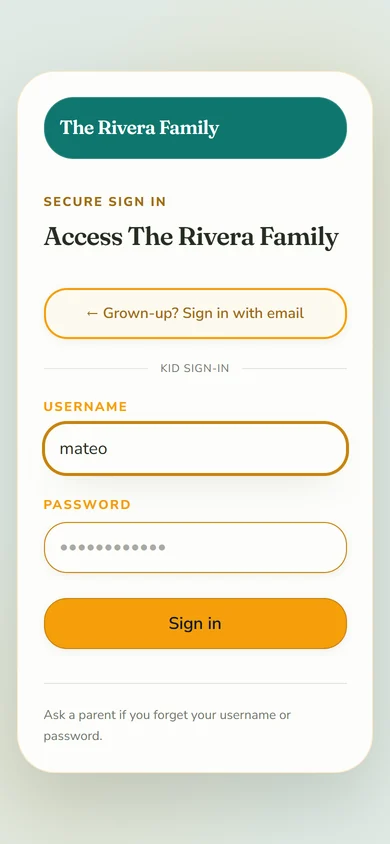
If a grown-up opened the kids form by mistake, Grown-up? Sign in with email goes back to the adult sign-in. At the bottom, the form reminds kids to ask a parent if they forget their username or password.
4. Explore all six tabs together
Children have six large tabs along the bottom of their screen:
| Tab | What your child can do |
|---|---|
| Home | Check remaining chat time, choose an allowed helper, and return to recent chats. |
| My chats | Find previous conversations or start a new chat. |
| Quests | See assigned work, submit it for review, and request available rewards. |
| Family | Open family projects shared with them. |
| Notes | Write notes, organize sections, read notes shared with them, and ask a helper about a note. |
| Me | Choose an avatar and color, and view their name and username. |
The helpers and projects shown depend on the access you gave the child. Use your adult account to adjust access or daily limits; a child asks a parent to change account details or reset their password.
5. Try a chat and save a useful answer
Choose a helper on Home, type a question and select Send. On the latest answer, try Give me a hint, Explain it a different way, or the read-aloud control. Voice input and Add a picture may be available depending on the device and account.
Choose Save to my notes under a helpful answer. Wait for Saved!, then use Saved · Open to open the note. In Notes, your child can also start a note from scratch, edit their own notes, and organize notes into sections. They can ask an available helper about a note. Notes shared by someone else are read-only.
Children cannot add notes or sections to knowledge bases, upload knowledge-base documents or share notes with others. Parents and assigned adults can open the child's notes from Family members in a read-only view to help them.
6. Join a shared project
Choose Family and open a project you shared with the child. They can use the project's chat and the features their permissions allow. Try asking The Planner to turn a school project into a checklist or explain an upcoming project event.
Project knowledge follows the project's access rules. Children do not see adult project budgets or event-cost controls. A project chat with child readers also leaves out adult budget details for everyone in that chat. Personal adult calendars and private adult budgets are not automatically shared with it.
7. Submit work and request a reward
In Quests, help your child open an assigned task, do the work, and select I did it! to submit it for adult review. Pending quest bucks are shown as waiting for a grown-up to approve. When the child requests a reward, explain that the request also goes to an adult for approval; submitting is not the same as receiving the reward.
8. Help when something is unavailable
If a helper or project is missing, check assignments from your adult account. If chatting stops because of a daily limit or curfew, return when access resumes or review the limit as a parent. Children do not have the adult controls for importing calendars, approving organization subscriptions or managing budgets.
Set daily limits and curfew, or return to the parent and adult user guide.