Tutorial 12 of 12
See what your family uses
For parents. Check usage, read the daily digest of your children’s conversations, and look in on their chats.
Grace gives parents three places to see how the family is using it: Usage, Family Digest and Family Discussions.
1. Check usage
In Parent tools, choose Usage. The top of the page shows the family’s assistant tokens, assistant requests and monthly cap. This month shows how much of the cap you have used so far.
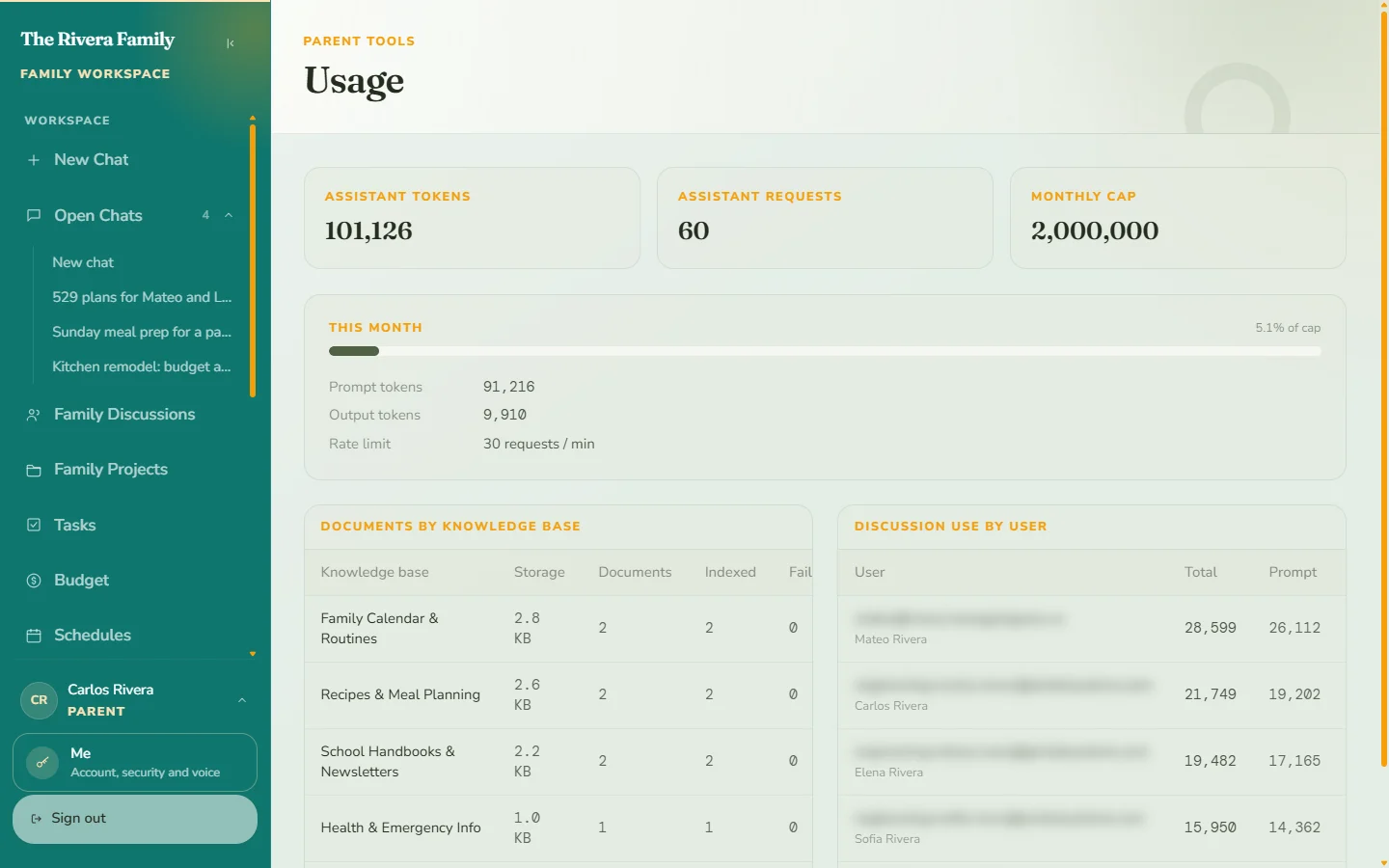
Further down, Documents by knowledge base lists each knowledge base with its storage and how many documents are indexed, and Discussion use by user shows how much each person in the family has used Grace.
2. Read the daily digest
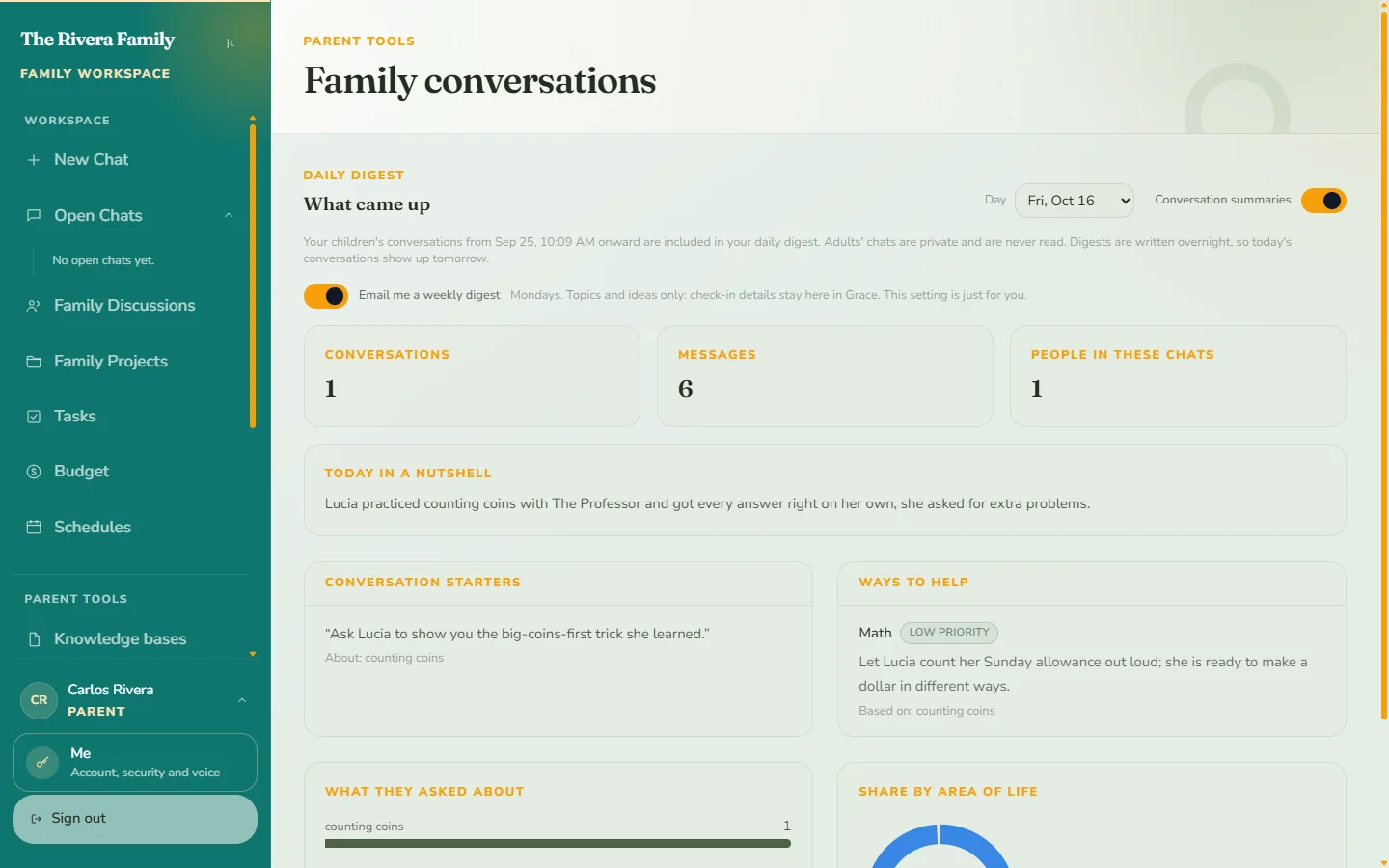
In Parent tools, choose Family Digest. The daily digest, What came up, summarizes your children’s conversations for the day you pick. You will see how many conversations and messages there were, a short Today in a nutshell, Conversation starters, and Ways to help.
A few things to know:
- Digests are written overnight, so today’s conversations show up tomorrow.
- Adults’ chats are private and are never read.
- The Conversation summaries switch turns the digest on or off. While it is off, nothing is analyzed and your children’s conversations are not read. When you turn it on, the digest covers conversations from that point forward.
- Turn on Email me a weekly digest to get one on Mondays. The email has topics and ideas only; the details stay in Grace. This setting is just for you.
3. Look in on a chat
In the Workspace section of the sidebar, choose Family Discussions. It lists every shared chat in your family, plus all of your children’s chats, with who started each one and when it was last active.
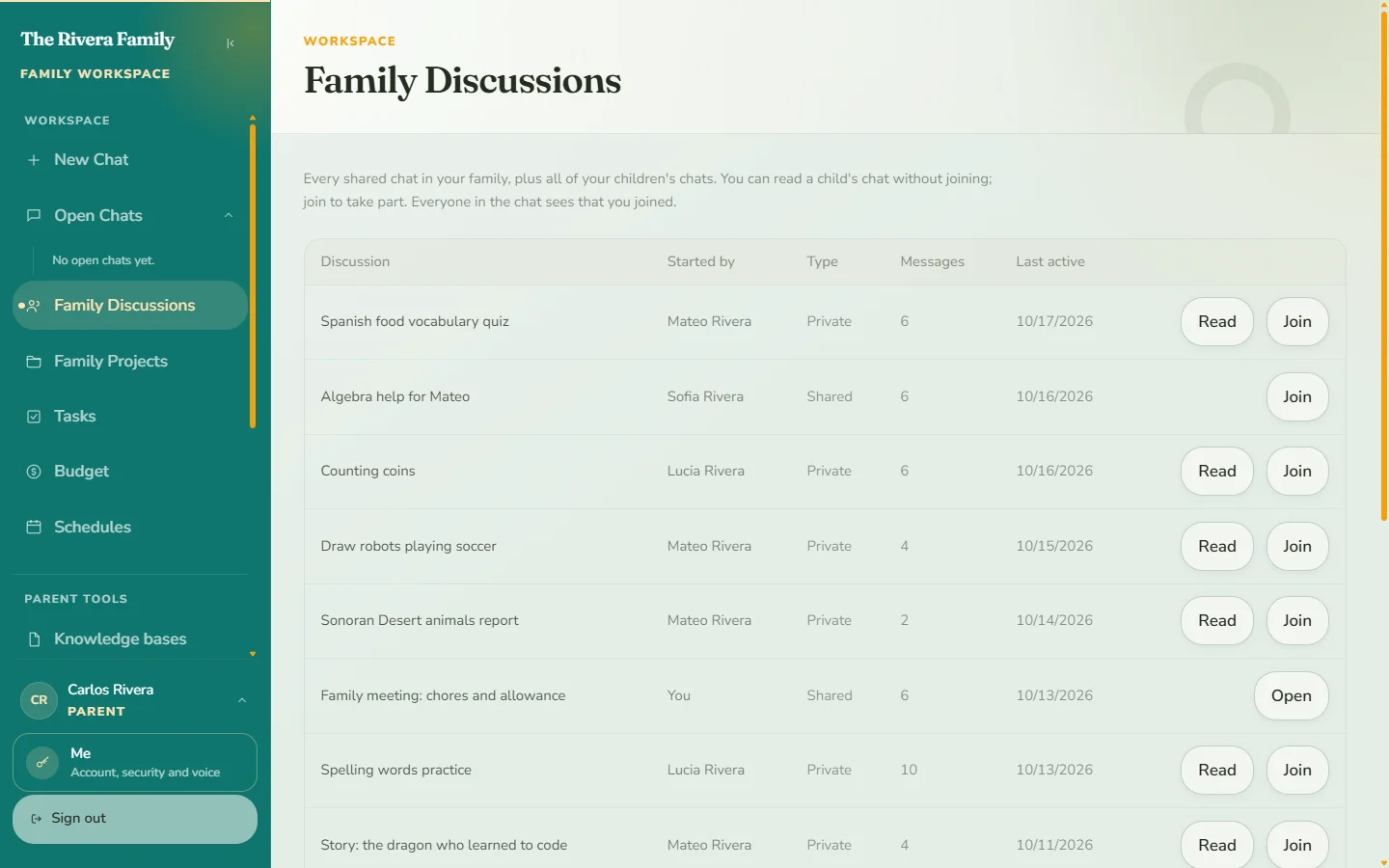
- Read opens a child’s chat without joining it.
- Join lets you take part. Everyone in the chat sees that you joined, so it never happens behind anyone’s back.
- Leave appears once you have joined, if you want to step back out.
Tips
- Use the conversation starters as a gentle way to talk about what your child is learning.
- If one person’s usage looks high, a daily limit on their account can help. See Set daily limits and a curfew.